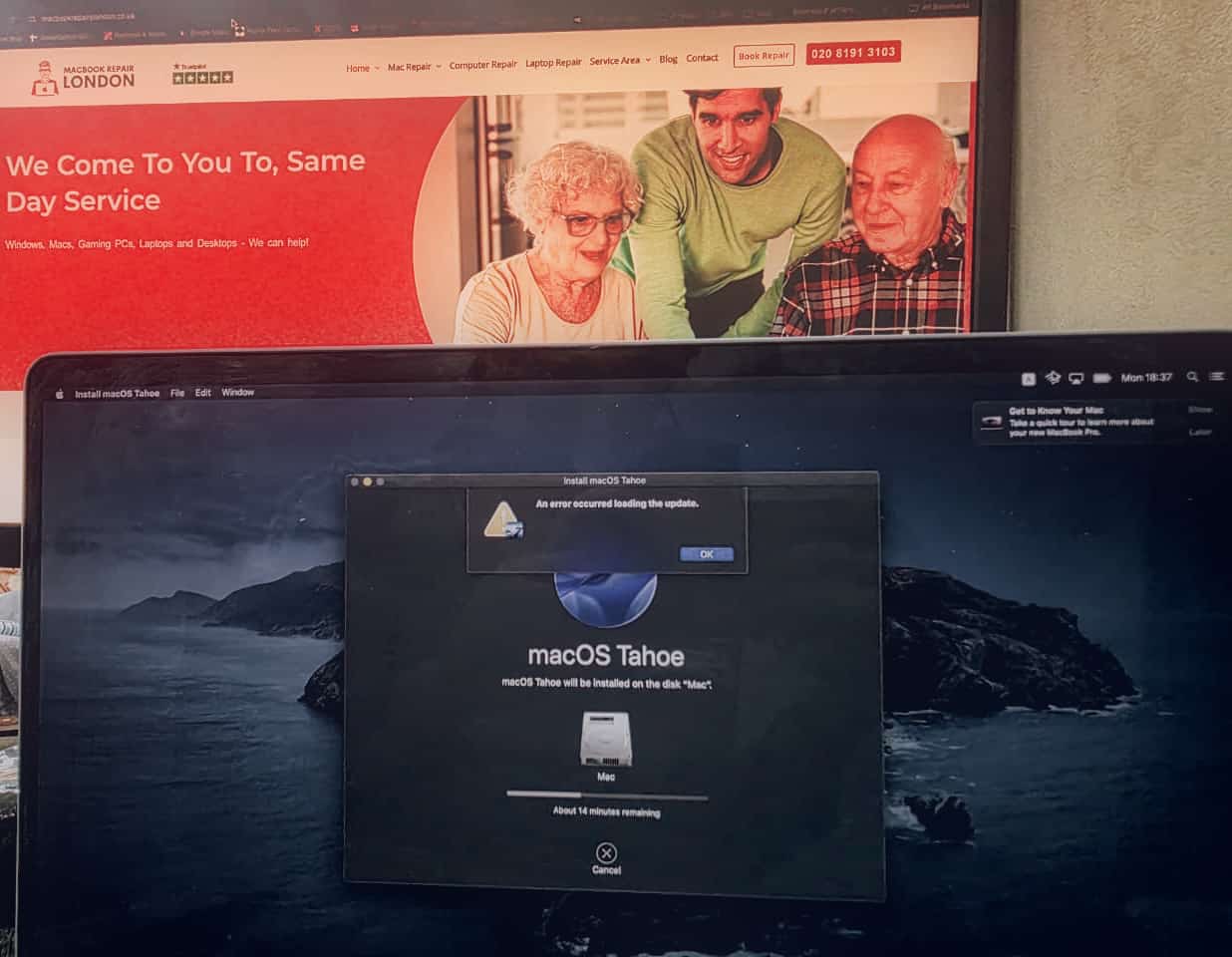
How to Fix “An Error Occurred Loading the Update” Issue (For Genuine, Untampered Macs)
Below are the most effective solutions for legitimate, unmodified MacBook Pro and MacBook Air.
1. Restart the Mac and try the update again
A simple restart clears temporary update files and refreshes the system.
- Click Apple Menu → Restart
- Reopen System Settings → Software Update
- Try downloading macOS Tahoe again
If the update still fails, move to the next step.
2. Check your internet connection
A stable, unrestricted internet connection is essential.
- Switch from Wi-Fi to Ethernet if possible
- Disconnect any VPN or proxy
- Ensure your network does not block Apple’s update servers
Try the update again.
3. Make sure you have enough free storage
macOS Tahoe typically needs:
- 25GB minimum, ideally 35GB+ free space
Go to:
Apple Menu → About This Mac → Storage
If storage is low, remove unused apps, downloads or large video files.
4. Delete the failed installer and download a fresh copy
A corrupted installation package is a very common cause.
- Open Applications
- Delete Install macOS Tahoe.app
- Empty the Bin
- Download the update again from:
System Settings → Software Update
5. Update Catalina first (if you’re on an older build)
Some older Catalina versions cannot authenticate the latest macOS installers.
Go to:
System Preferences → Software Update → Install Catalina patches
Once Catalina is fully updated, try installing macOS Tahoe again.
6. Install the update in Safe Mode
Safe Mode prevents third-party apps from interfering.
- Shut down the Mac
- Turn it on and immediately hold Shift
- Continue holding until you see the login screen
- Try the update again in Safe Mode
-
7. Boot into Recovery Mode and reinstall macOS
If the update still fails, reinstalling from Recovery Mode often resolves the issue.
For Intel Macs:
Restart → hold Command + R
For M1/M2/M3 Macs:
Shut down → hold Power until “Options” appears → Continue in Recovery
Choose Reinstall macOS
This does not erase your files.
8. If nothing works, the installer may be incompatible
Some older MacBook Pro models from 2012–2015 cannot upgrade directly from Catalina to the latest macOS because of:
If you’re unsure whether your Mac supports macOS Tahoe, check the official Apple compatibility list or contact a technician.
When to Seek Professional Help
If your Mac is still showing the “An error occurred loading the update” message after trying all the steps above, the problem may be caused by:
In these cases, an Apple Mac specialist can diagnose the machine, reinstall macOS safely, or repair any underlying hardware faults.
Final Thoughts
The “An error occurred loading the update” message can be frustrating, but in most cases, it is caused by simple issues like corrupted installers, unstable internet, or outdated macOS certificates. However, if your Mac has been Activation Lock bypassed, EFI modified, or unlocked using third-party software, major updates will not work.
Keeping macOS up to date is crucial for performance, security and compatibility, so it’s important to identify the cause and fix it properly.