Tech Writer
Have you ever opened your MacBook, pressed the power button, and… nothing happened? No Apple logo, no startup sound, and no charging sign after plugging it in. It’s one of those moments that can instantly make you worry, especially if you rely on your laptop for work, studies, or running your business.
If your MacBook won’t turn on or charge, don’t panic just yet. Many people immediately think their laptop is beyond repair, but that’s not always true. Sometimes the issue is as simple as a faulty charger, a dirty charging port, or a battery that’s completely drained.
Things become a little more stressful when you realise your MacBook is out of warranty. You may think your only option is buying a new one, but in many cases, that’s not necessary.
In this guide, we’ll explain the common reasons why a MacBook stops turning on or charging, the simple fixes you can try at home, and the best repair options if your warranty has expired.
Why Won’t My MacBook Turn On?
There isn’t just one reason why a MacBook refuses to start. It could be a software issue, a charging problem, or even a hardware fault. Let’s look at the most common causes.
1. The Battery Is Completely Empty
If your battery has been fully drained, your MacBook may not turn on immediately after connecting the charger. It usually needs some time before it has enough power to start.
Plug it into the charger and leave it alone for about 30 minutes before trying again.
Example:
Sarah left her MacBook in a drawer during her semester break. When she finally needed it again, it wouldn’t turn on. She thought it had died, but after charging it for half an hour, it started working normally.
2. Your Charger May Be the Problem
Not every charging issue means your MacBook is broken. Sometimes the charger or cable has simply stopped working.
Check for:
- A broken cable
- Bent connectors
- Burn marks
- Loose charging pins
If possible, borrow another genuine Apple charger or a trusted compatible charger to see if your MacBook starts charging.
3. The Charging Port Is Dirty
This is something many people overlook.
Dust, lint, and tiny particles collect inside the charging port over time. If the charger can’t make proper contact, your MacBook won’t receive power.
Use a flashlight to inspect the port. If you notice dirt, gently clean it using a wooden toothpick or compressed air. Never use anything metal because it can damage the connectors.
4. Your MacBook Is Frozen
Sometimes the MacBook is actually on, but the system has frozen, making the screen stay black.
Try this:
- Press and hold the power button for about 10 seconds.
- Wait a few seconds.
- Press it again normally.
Many users are surprised when this simple trick brings their laptop back to life.
Why Is My MacBook Not Charging?
If your MacBook turns on but the battery isn’t charging, there could be several reasons.
Battery Health Has Declined
MacBook batteries don’t last forever. After years of regular use, they slowly lose their ability to hold a charge.
Common signs include:
- Battery drains very quickly.
- Laptop only works while plugged in.
- Charging stops before reaching 100%.
- Battery percentage jumps suddenly.
If you’re seeing these signs, your MacBook battery may need replacing.
Faulty Power Adapter
Even if the cable looks perfect, the power adapter itself could have failed.
A quick way to check is by using another compatible charger. This simple test can save you from spending money on unnecessary repairs.
Software Glitches
Occasionally, a software bug can stop the charging process.
Restart your MacBook and make sure macOS is updated if you’re able to access the system. If the problem continues, the issue is likely related to hardware instead.
Extra Steps You Can Try at Home
Before visiting a repair shop, try these easy troubleshooting steps.
✔ Leave It Charging
Sometimes patience is the solution. Leave your MacBook plugged in for at least 30 minutes before trying to turn it on.
✔ Test Another Wall Outlet
The issue might not be your laptop at all. Plug your charger into another wall socket to make sure it’s receiving power.
✔ Disconnect External Devices
Remove USB drives, external monitors, keyboards, and other accessories. Occasionally, connected devices can interfere with startup.
✔ Listen Carefully
Even if the screen stays black, listen for fan noise, startup sounds, or keyboard backlighting. These clues can help identify whether the MacBook is receiving power.
What If You Have an Intel MacBook?
If your MacBook uses an Intel processor, you can try resetting the System Management Controller (SMC).
The SMC controls important functions like:
- Battery charging
- Power management
- Cooling fans
- Sleep mode
A reset can sometimes solve charging and startup issues without requiring repairs.
If your MacBook starts but behaves strangely, you can also reset the **NVRAM**, which stores display and startup settings.
What About Apple Silicon MacBooks?
Newer MacBooks with M1, M2, M3, or M4 chips work differently.
These models don’t require an SMC reset because Apple has built those functions directly into the processor.
Instead, try entering macOS Recovery Mode by holding the power button until you see Startup Options. From there, you can use Disk Utility or reinstall macOS if needed.
Your MacBook Is Out of Warranty—Now What?
If none of the basic fixes work, don’t lose hope.
Having a MacBook that’s out of warranty doesn’t automatically mean you need a brand-new laptop.
Here are your main options.
Visit Apple
Apple technicians can run professional diagnostics to identify the problem.
The downside is that Apple often replaces entire parts instead of repairing individual components. This can make repairs much more expensive, especially if the logic board is involved.
Choose a Trusted Independent Repair Shop
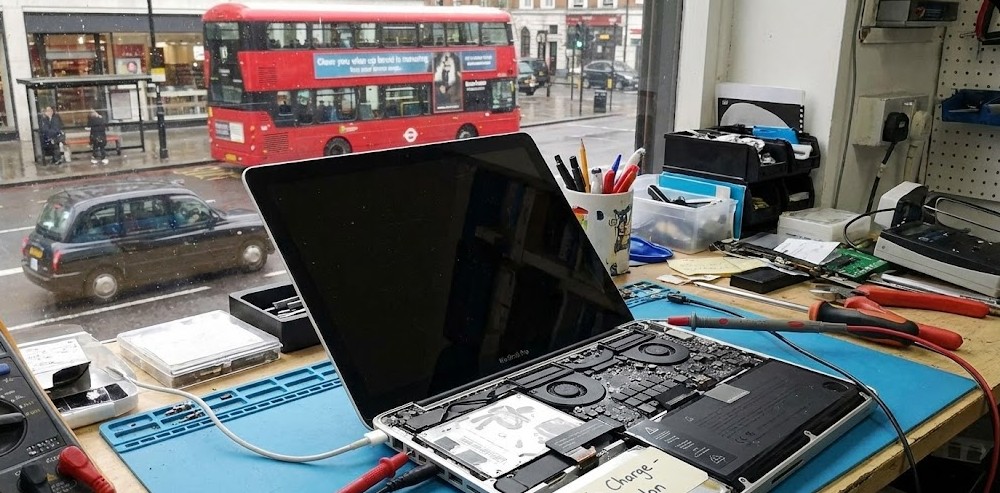
Many experienced repair technicians specialise in MacBook repair and can fix damaged chips or connectors instead of replacing the whole motherboard.
This approach is usually much more affordable.
Before choosing a repair shop, ask:
- Do you specialise in MacBooks?
- Do you use quality replacement parts?
- Do you provide a warranty on repairs?
Reading customer reviews can also help you find a reliable technician.
Try Apple’s Self-Service Repair Program
If you enjoy repairing electronics yourself, Apple also offers genuine replacement parts and official repair manuals through its Self-Service Repair program.
This option is best for people who already have technical experience and the right tools.
Should You Repair or Replace Your MacBook?
This is one of the biggest questions people ask after discovering their MacBook is out of warranty.
Repairing makes sense if:
- Your MacBook is only a few years old.
- The battery needs replacing.
- The charging port is damaged.
- The repair cost is reasonable.
Replacing may be the better choice if:
- Several major components have failed.
- Repair costs are close to the price of another MacBook.
- Your laptop no longer supports recent macOS updates.
- Performance has become too slow for your daily work.
Think of it this way: if repairing your MacBook costs almost as much as buying a newer model, investing in a replacement may save you money in the long run.
Final Thoughts
A MacBook won’t turn on or charge for many different reasons, but that doesn’t always mean it’s permanently damaged. Start with the simple checks—inspect the charger, clean the charging port, test another outlet, and leave the battery charging for a while. These basic steps solve more problems than many people expect.
If your MacBook is out of warranty, compare your repair options carefully before making a decision. A trusted repair specialist can often fix the issue for much less than the cost of replacing your laptop. With the right diagnosis, you may be able to extend your MacBook’s life for several more years and avoid an unnecessary expense.
At MacBook Repairs London, we understand how important your devices are to your daily life, whether you use them for work, study, gaming, or staying connected with family. That’s why our experienced technicians take the time to diagnose every issue carefully and provide honest, reliable repair solutions.
From MacBooks and laptops to desktop PCs and gaming computers, we handle a wide range of hardware and software problems using quality parts and professional repair techniques. We believe in clear communication, fair pricing, and getting your device back to you as quickly as possible.
If you’re experiencing any computer issues, don’t wait until the problem gets worse. Our friendly team is here to help with expert advice and dependable repairs you can trust.
Contact MacBook Repairs today and let us get your device back to performing at its best.
Author 's Profile
B. Saeed
B. Saeed is a tech blog writer at MacBook Repairs London shares expert tips, guides, and repair insights to help MacBook users across London. With hands-on experience in Apple device troubleshooting and a passion for technology, she break down complex repairs into simple, useful advice. From battery replacements to logic board fixes, her goal is to keep your Mac running at its best while giving you practical knowledge along the way.