Tech Writer
Children are growing up in a world where the internet is part of everyday life. Whether they are using a MacBook for homework, watching videos on an iPad, playing games online, or chatting with friends, being connected is now normal for most families.
The internet can be brilliant for learning, creativity and entertainment, but it also comes with risks. Children can accidentally come across unsuitable websites, spend too much time on screens, download unsafe apps, or speak to people they do not know. This is where parental controls can help.
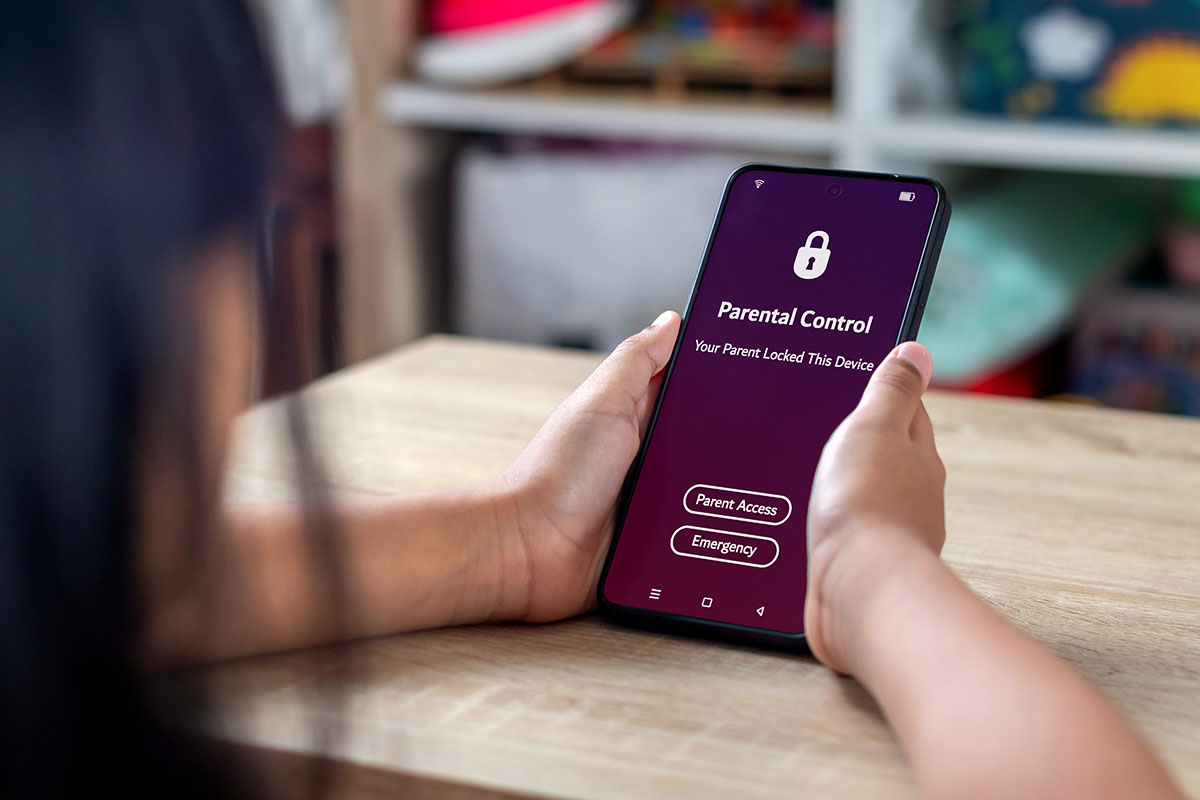
Parental controls are not about spying on your child or stopping them from using technology completely. Used properly, they are there to create safer boundaries, support healthy screen habits and give parents more confidence.
At MacBook Repairs London, we often help families set up Macs, iPads, iPhones and home devices safely. From our real experience with customers, we know many parents are not sure where to start. This guide explains the basics in a simple way, so you can make better decisions for your home.
What Are Parental Controls?
Parental controls are settings that allow you to manage what a child can see and do on a device or online account. They can help you control screen time, block adult content, restrict apps, stop certain purchases, and limit who your child can communicate with.
Most modern devices already include these features. Apple has Screen Time built into macOS, iPhone and iPad. Windows has Microsoft Family Safety, Android has Google Family Link, and many routers also offer family safety options.
The important thing to understand is that parental controls are a tool, not a complete solution. They work best when combined with honest conversations, clear family rules and regular checks.
No filter is perfect. Children can sometimes find ways around restrictions, especially as they get older. That is why parental controls should be reviewed from time to time and adjusted as your child grows.
Why Parental Controls Matter
Parents often tell us, “My child only uses the laptop for school,” or “They only watch YouTube.” The problem is that even normal online activities can quickly lead children to content that is not suitable for their age.
A child may click on a suggested video, open a random website, download a game, or accept a message from someone they do not know. These things can happen quickly, even in a busy family home.
Parental controls can help with:
Reducing access to adult or harmful websites.
Limiting screen time during bedtime, school hours or family time.
Blocking app downloads or purchases without permission.
Managing YouTube, games, social media and messaging apps.
Helping younger children use technology in a safer way.
Giving parents more visibility and control.
For many families, the biggest benefit is peace of mind. You cannot sit next to your child every minute they are online, but you can set sensible limits to reduce unnecessary risks.
Start With a Conversation, Not Just a Password
Before you start locking everything down, it is worth speaking to your child in a calm and simple way. Explain why you are setting rules. Make it clear that the aim is safety, not punishment.
For younger children, you can keep it simple: some websites and apps are not suitable for children, and some screen time limits help protect sleep, schoolwork and family routine.
For older children and teenagers, the conversation may need to be more open. They may feel frustrated if rules suddenly appear without explanation. Involving them in the discussion can make them more likely to respect the boundaries.
A good approach is to agree on basic family rules, such as:
- No devices after a certain time at night.
- No downloads without permission.
- No speaking to strangers online.
- No sharing personal details, school names or location.
- Tell an adult if something online feels strange, scary or uncomfortable.
Technology settings help, but trust and communication are just as important.
The Main Types of Parental Controls
Most parental control settings fall into a few main areas.
1. Screen Time Limits
For example, you might allow more time for homework apps but less time for games or video streaming. On Apple devices, you can set app limits, downtime and communication limits using Screen Time.
This is especially useful if your child struggles to stop using a MacBook, iPad or phone at bedtime.
2. Content Restrictions
Content controls help block unsuitable websites, adult content and certain types of online material. This can be done on the device, browser, app, router or account level.
For younger children, you may want stronger restrictions and only allow approved websites. For older children, you may prefer a more balanced setup that blocks adult content but still allows normal research and school use.
On Apple devices, you can restrict adult websites, limit web access, block explicit content and control app ratings.
3. App and Game Restrictions
Many children spend more time inside apps than on websites. That means app restrictions are just as important.
You can control which apps can be installed, which games are allowed, whether in-app purchases are blocked, and what age rating is permitted.
This is particularly useful for games with online chat, social media apps, video apps, and anything that allows contact with strangers.
4. Communication Controls
Communication controls help manage who your child can contact and who can contact them. Depending on the device and app, this may include calls, messages, FaceTime, gaming chat or social media.
For younger children, it is sensible to limit communication to trusted contacts only. For older children, you may still want to review privacy settings and make sure unknown users cannot easily message them.
5. Router-Level Controls
Some home broadband routers allow you to apply parental controls across the whole Wi-Fi network. This can be useful because it protects multiple devices at once, including laptops, tablets, phones, smart TVs and gaming consoles.
However, router controls vary depending on your internet provider and router model. Some are basic, while others offer advanced features through a paid subscription.
Router-level controls are helpful, but they should not replace device-level settings. The best setup is usually a combination of both.

How to Set Up Parental Controls on a MacBook
If your child uses a MacBook, Apple’s built-in Screen Time feature is usually the best place to start.
You can use Screen Time to:
- Set daily app limits.
- Schedule downtime.
- Block adult websites.
- Restrict app downloads.
- Limit explicit content.
- Control communication settings.
- Use a Screen Time passcode so settings cannot be changed easily.
To find it on most modern Macs, go to:
Apple Menu > System Settings > Screen Time
From there, you can select your child’s account and choose the settings you want. For the best result, your child should have their own user account rather than using your main admin account.
This is something many parents overlook. If a child uses an administrator account, they may be able to change settings, install apps or bypass restrictions. Creating a separate standard user account is a much safer option.
How to Set Up Parental Controls on iPhone and iPad
On iPhone and iPad, parental controls are also managed through Screen Time.
You can set:
- Downtime.
- App limits.
- Content restrictions.
- Purchase restrictions.
- Communication limits.
- Website restrictions.
- Privacy controls.
Go to:
Settings > Screen Time
If you use Apple Family Sharing, you can manage your child’s settings from your own iPhone. This is helpful because you do not need to take their device every time you want to make a change.
Make sure you use a Screen Time passcode that your child does not know. Avoid simple codes such as birthdays or repeated numbers.
How to Manage YouTube and Video Content
For younger children, YouTube Kids can be a better option, but it still needs supervision. You can also use restricted mode on YouTube, although it is not perfect.
For stronger control, consider:
- Using YouTube Kids for younger children.
- Turning on Restricted Mode.
- Blocking YouTube during homework or bedtime.
- Setting app time limits.
- Checking watch history occasionally.
- Using approved content only for very young children.
If YouTube is becoming a constant issue at home, setting a clear time limit often works better than trying to block individual videos one by one.
How Much Screen Time Is Too Much?
The key is balance. Screen time should not regularly replace sleep, schoolwork, outdoor activity, family conversation or basic routines.
You may want stricter limits during school nights and more flexibility at weekends. You can also separate productive screen time from entertainment time. For example, schoolwork, coding, reading and creative projects may be treated differently from gaming or endless scrolling.
If your child becomes angry, secretive or highly anxious when screen time ends, that may be a sign the current routine needs adjusting.
Common Mistakes Parents Make
From helping families with device setups, we often see the same mistakes.
One common mistake is giving children full admin access on a MacBook. This makes it easier for them to install apps, change settings or remove restrictions.
Another mistake is setting controls once and never checking them again. Children grow, apps change, and new risks appear. A setup that worked last year may not be suitable now.
Parents also sometimes forget about other devices. A MacBook may be restricted, but the child may still have access through a phone, tablet, games console or smart TV.
Finally, many families use weak passwords or share the same Apple ID between parent and child. This can create confusion and reduce the effectiveness of parental controls.
A proper setup should be clear, separate and easy for the parent to manage.
When Should You Get Professional Help?
You may want professional help if you are not confident setting up parental controls yourself, or if you have several devices in the home and want everything configured properly.
You may also need help if:
- Your child keeps bypassing restrictions.
- The MacBook has the wrong user account setup.
- Screen Time is not working properly.
- You want to connect parental controls across Mac, iPhone and iPad.
- You need help with Apple ID or Family Sharing.
- Your home Wi-Fi needs safer settings.
- You are worried about viruses, pop-ups or unsafe downloads.
At MacBook Repairs London, we can help set up parental controls in a practical way that suits your family. We can configure MacBooks, iMacs, iPhones and iPads, review account permissions, apply safer browsing settings and explain how you can manage the controls yourself going forward.
We do not just switch settings on and leave you confused. We guide you through what has been changed, why it matters, and how you can update the rules later as your child grows.
Final Thoughts
Parental controls are not about making the internet scary. They are about giving children safer boundaries while they learn how to use technology responsibly.
The best approach is a mix of clear conversations, sensible rules and properly configured devices. Start with the basics, review the settings regularly, and adjust them as your child becomes more mature.
A MacBook, iPad or iPhone can be a fantastic tool for learning and creativity when it is set up correctly. With the right controls in place, you can give your child more freedom online while still reducing the risks.
If you need help setting up parental controls on a MacBook or Apple device, MacBook Repairs London can assist with friendly, professional support for families across London.
Author 's Profile
B. Saeed
B. Saeed is a tech blog writer at MacBook Repairs London shares expert tips, guides, and repair insights to help MacBook users across London. With hands-on experience in Apple device troubleshooting and a passion for technology, she break down complex repairs into simple, useful advice. From battery replacements to logic board fixes, her goal is to keep your Mac running at its best while giving you practical knowledge along the way.