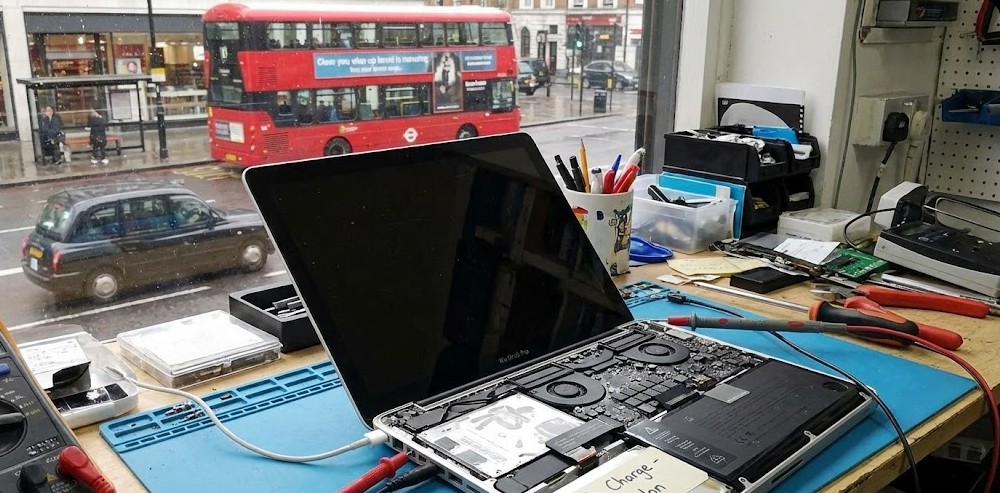
When Your MacBook Stops Connecting to Your Office Setup
For people working in Canary Wharf, a MacBook is often much more than a laptop. It is the centre of a complete working environment, connected to external monitors, Thunderbolt docking stations, external SSDs, keyboards, charging adapters and other essential office equipment.
Financial analysts, consultants, business executives and remote professionals frequently rely on a single USB-C or Thunderbolt connection to power their MacBook while simultaneously connecting multiple devices. However, what happens when that connection suddenly stops working?
Your MacBook may continue running normally, but one USB-C port no longer charges the battery. An external monitor may display a ‘No Signal’ message, a Thunderbolt dock may disappear from the connected devices list, or an external SSD may no longer be recognized. Sometimes, the problem affects only one port.
These symptoms can indicate anything from a damaged USB-C connector to a more complex fault involving the power delivery controller, charging circuitry or Thunderbolt communication components.
In this guide, we explain why MacBook USB-C ports fail, how technicians diagnosed charging and display connectivity problems, and when repairing the existing logic board may be a practical alternative to replacing it.
1. Why Does a MacBook USB-C Port Stop Charging or Detecting External Monitors?
USB-C is more than a conventional charging connection. Modern MacBook models use sophisticated circuitry to manage power delivery, data communication, accessory recognition and external display connectivity.
Thunderbolt-compatible USB-C ports also support high-speed data transfer and video output, depending on the MacBook model and port specifications. This means that a single faulty component can affect several functions at once.
For example, a MacBook might charge through one USB-C port but fail to recognize an external monitor through another. This does not necessarily mean that the entire logic board has failed. Several hardware-related problems can produce similar symptoms.
A. Faulty USB-C Power Delivery Controllers
USB-C Power Delivery (USB PD) is a communication protocol that allows a compatible charger and MacBook to negotiate an appropriate charging voltage and current. The process is managed by dedicated controller circuitry.
On certain Intel-based MacBook logic boards, technicians may encounter controller families such as CD3215 and CD3217. These components are associated with USB-C port management and power delivery functions on particular board generations.
When a controller or its supporting circuitry becomes faulty, the MacBook may experience:
- Failure to negotiate the expected charging voltage.
- Charging that works intermittently.
- One USB-C port becoming completely unresponsive.
- Failure to recognize connected USB-C accessories.
- Unusual behavior when switching between charging ports.
It is important to understand that not every USB-C charging fault indicates a defective controller. The supporting power rails, connectors, protection components and communication lines must also be examined.
B. Physical Damage to the USB-C Connector
USB-C connectors are compact and designed for repeated use. However, frequent insertion and removal, accidental cable pulling and poor-quality accessories can eventually damage the connection.
Common signs of connector damage include:
- The charging cable feels loose.
- Charging starts and stops when the cable moves.
- One side of the connector works inconsistently.
- The MacBook fails to recognize connected devices.
- Visible debris, corrosion or damaged contacts inside the port.
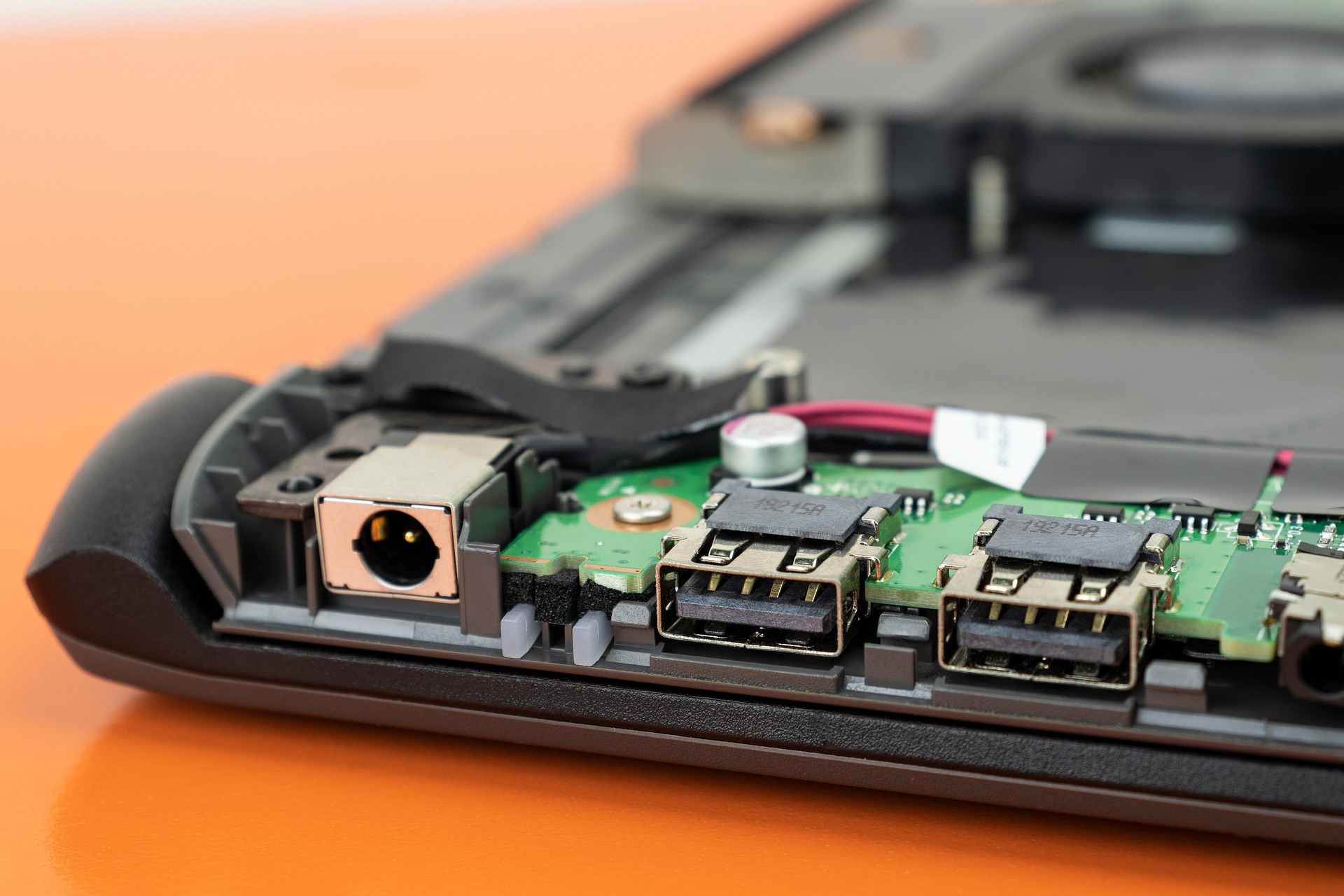
A damaged connector can also develop cracked solder joints where it attaches to the logic board. In these situations, replacing the damaged USB-C connector may resolve the problem without replacing the entire logic board, provided that the surrounding circuitry remains healthy.
C. Power Delivery Circuit and Component Failure
The USB-C charging system depends on several supporting electronic components.
These can include MOSFETs, current-sensing resistors, protection components and other power-management circuitry.
For example, a damaged MOSFET may prevent a particular power path from operating as intended. Similarly, a shorted capacitor or damaged protection component can affect a power rail and interfere with normal charging. These faults require electrical testing rather than simply replacing the charging cable or port.
D. Liquid Damage and Corrosion
Liquid exposure is another common cause of USB-C and Thunderbolt connectivity problems. A small amount of water, coffee or another liquid entering the USB-C port can leave conductive residue behind.
Even if the MacBook initially appears to work normally, corrosion may develop around the connector pins and nearby components.
Possible symptoms include:
- Charging failure after liquid exposure.
- USB-C accessories disconnecting unexpectedly.
- One port working while another stops responding.
- Intermittent external display detection.
- Unusual power consumption or failure to start.
Any Liquid damage should be investigated promptly. Continuing to connect chargers or accessories to a potentially damaged port can introduce further electrical problems.
E. Thunderbolt Controller and Display Connectivity Faults
Not every USB-C port problem is related to charging. A MacBook may charge perfectly but fail to detect an external monitor or Thunderbolt docking station.
The fault may also originate outside the MacBook itself, including an incompatible cable, faulty docking station or monitor configuration.
For this reason, technicians should test the complete connection rather than immediately assuming that the logic board is defective.
2. Understanding the Difference Between USB-C Charging and Thunderbolt Display Problems
Although USB-C and Thunderbolt use the same physical connector on many MacBook models, they do not provide identical functionality.
USB-C describes the connector and associated USB standards, while Thunderbolt provides additional high-speed data and display capabilities. Not every USB-C port supports every Thunderbolt feature. Supported functions also vary between MacBook generations.
The following table explains some important differences.
Function | What it does | Possible fault symptoms |
USB-C Power Delivery | Negotiates charging voltage and current | |
USB data communication | Connects external storage and accessories | Devices not recognised |
DisplayPort Alt Mode | Carries video through supported USB-C connections | External monitor not detected |
Thunderbolt communication | Supports high-speed data and display connections | Docking station not recognised |
Connector and power circuitry | Provides the physical and electrical connection | Intermittent or completely failed port |
Understanding these differences helps technicians narrow down the problem and avoid unnecessary component replacement.
3. How We Diagnose MacBook USB-C and Thunderbolt Faults
Replacing the logic board without identifying the underlying problem can be an expensive decision.
At MacBook Repair London, our diagnostic approach focuses on checking the charging system, connector condition and communication circuitry before determining the most appropriate repair. The exact procedure depends on the MacBook model, logic board design and reported symptoms.
Step 1: Testing the Charger, Cable and External Accessories
The first step is to eliminate external equipment as the cause.
A technician may test the MacBook using:
- A compatible, known-good USB-C charger.
- A suitable USB-C or Thunderbolt cable.
- A verified docking station.
- A working external monitor.
- A known-good USB-C storage device.
This helps determine whether the problem originates from the MacBook or an external accessory.
Step 2: Checking USB-C Power Delivery Negotiation
A USB-C power meter can help technicians observe the voltage and current being supplied during charging. USB-C Power Delivery begins with an initial connection and negotiation process.
Depending on the charger, device and supported power profiles, the system may negotiate higher voltage levels beyond the initial 5V supply. If a MacBook remains at 5V instead of negotiating an expected higher-power charging profile, this may indicate a problem with the charging communication process.
Step 3: Measuring Logic Board Power Rails
For supported Intel-based MacBook logic boards, technicians may examine important power rails such as PPBUS_G3H.
PPBUS_G3H is a significant system power rail found on various Intel MacBook board designs. Its voltage and behavior can provide useful information about the power management system.
Depending on the model and fault symptoms, technicians may check for laptop repair:
- Voltage availability on relevant power rails.
- Unexpected voltage drops.
- Short circuits to ground.
- Current consumption abnormalities.
- Faults in associated power-management components.
Step 4: Inspecting USB-C Controllers and Supporting Components
If the initial electrical tests indicate a controller-related problem, the next stage involves examining the relevant components. On compatible Intel models, this may include inspecting the CD3215 or CD3217 controller circuitry.
Technicians may investigate:
- Relevant power supply inputs.
- Communication signals.
- Component temperature abnormalities.
- Shorted or damaged supporting components.
- Corrosion around the controller and surrounding circuitry.
Step 5: Testing Thunderbolt and External Display Functionality
Once charging-related problems have been investigated, display and data connectivity should also be tested. A technician can use compatible monitors, verified cables and known-good docking stations to assess the connection.
The MacBook’s display settings, supported external display limits and macOS compatibility should also be considered. If charging works but external displays remain undetected, the investigation may need to focus on the display signal pathway, Thunderbolt functionality or related communication circuitry.
4. Practical Repair Scenario: MacBook USB-C Failure in Canary Wharf
MacBook Repair London case study based on a real time professional office repair scenario.
A finance professional based in Canary Wharf, London, contacted our MacBook Repair London technician after experiencing an unexpected USB-C port failure on their MacBook Pro. The affected port had stopped charging the laptop and failed to connect to the office’s Thunderbolt docking station, leaving both external monitors without a signal.
Initially suspecting a faulty dock, our technician carried out diagnostic testing using a compatible charger and replacement USB-C cable. The issue persisted, while the second USB-C port continued to function normally. This indicated a localized hardware fault rather than a docking station issue.
Our investigation focused on the USB-C port, charging circuitry and Thunderbolt connection pathway to identify the underlying fault and determine the appropriate logic board-level repair.
What the Diagnostic Process Reveals
A professional inspection would investigate several possible causes:
- External accessories: The charger, cable and docking station are tested using known-good alternatives.
- USB-C connector: The affected port is inspected for physical damage, debris and corrosion.
- Power delivery: Voltage and current behavior are assessed to identify possible negotiation problems.
- Logic board: Relevant power rails and supporting components are examined.
- Display connectivity: External monitor detection is tested separately from charging functionality.
Suppose the investigation identifies a damaged USB-C connector and associated circuitry as the source of the problem, while the remaining logic board functions normally.
In that situation, a targeted component-level repair may be possible. After the repair, the technician would retest charging, accessory recognition and external display connectivity before returning the MacBook.
5. Can a MacBook USB-C Port or Logic Board Be Repaired Instead of Replaced?
In many cases, yes. The repairability of a USB-C fault depends on the damaged component, the condition of the surrounding circuitry and the MacBook’s specific hardware architecture.
Some faults can be resolved through connector replacement, while others require more advanced board-level work.
Identified problem | Possible repair approach | Important consideration |
Damaged USB-C connector | Connector replacement | Check surrounding PCB pads and traces |
Faulty USB-C controller | Component-level replacement | Confirm supporting circuitry is healthy |
Shorted power component | Replace damaged component | Identify the original cause of the short |
Liquid damage | Cleaning and component restoration | Corrosion may extend beneath components |
Thunderbolt-related fault | Circuit-level diagnosis and repair | Depends on the affected circuitry |
Extensive logic board damage | Board replacement may be necessary | Repair feasibility must be assessed |
Intel vs Apple Silicon: Why MacBook Model Identification Matters
One important technical consideration is the difference between Intel-based MacBooks and Apple silicon models. Older Intel MacBook generations may use USB-C controller architectures involving components such as CD3215 and CD3217.
Apple silicon MacBooks use different power management and system architectures. Their USB-C and Thunderbolt circuitry must be assessed according to the specific board design. This is why technicians should never assume that the same diagnostic procedure or component replacement applies to every MacBook.
Accurate model identification and board-level assessment are essential before recommending a repair.
6. How to Prevent Future MacBook USB-C and Thunderbolt Problems
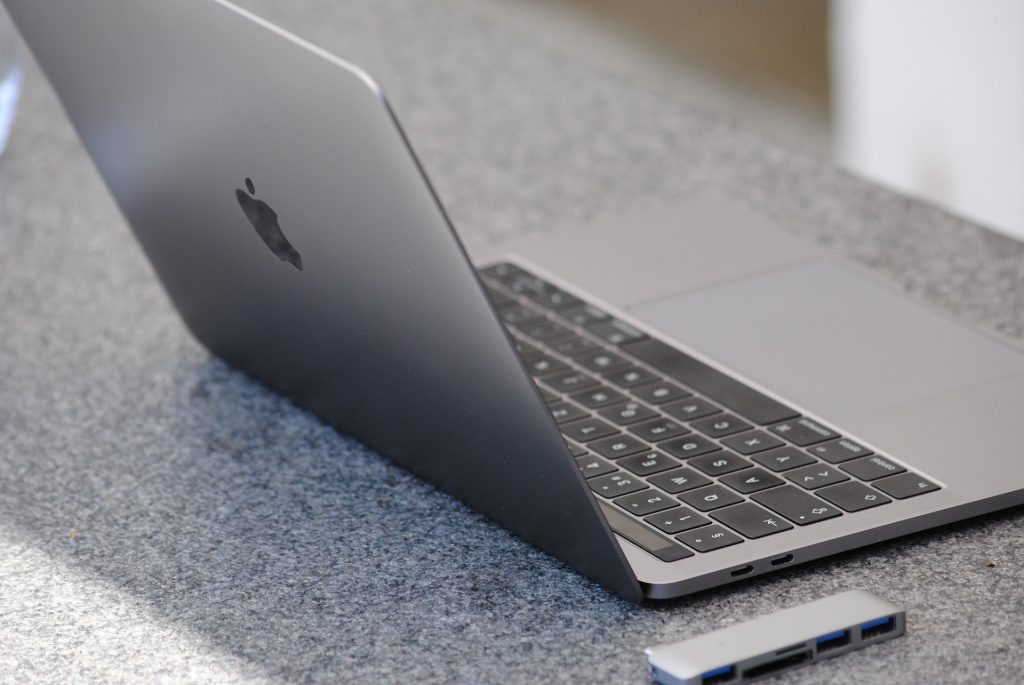
Although some hardware failures occur unexpectedly, good usage habits can help reduce unnecessary stress on USB-C ports and connected accessories.
Here are a few practical recommendations for MacBook users:
- Use compatible charging equipment: Choose chargers and cables that meet the power requirements and specifications of your MacBook.
- Avoid pulling cables sideways: Excessive pressure on the connector can damage the port or weaken its solder joints.
- Use reliable docking stations: Low-quality or incompatible accessories may cause connectivity and power delivery problems.
- Keep USB-C ports clean: Dust and debris can interfere with the physical connection. Avoid inserting sharp objects or liquids into the ports.
- Disconnect accessories carefully: Remove cables by holding the connector rather than pulling the wire.
- Respond quickly to liquid exposure: Disconnect power if safe to do so and arrange a professional inspection. Do not continue charging a MacBook that may have suffered liquid damage.
- Back up important data: Regular backups help protect important business files if a hardware failure requires extensive repair.
7. Professional MacBook USB-C and Thunderbolt Repair in Canary Wharf, London
Canary Wharf is one of London’s major business and financial districts, where professionals often depend on reliable technology for everyday operations.
A MacBook that cannot charge through its usual port or connect to an external monitor can create unnecessary disruption. At MacBook Repair London, we provide specialist MacBook diagnostics and hardware repair services for customers across Canary Wharf and surrounding areas.
Our services include:
- MacBook USB-C charging port diagnostics and repair.
- Thunderbolt connectivity fault diagnosis.
- MacBook logic board repair.
- USB-C power delivery circuit investigation.
- Component-level microsoldering.
- Liquid damage inspection and restoration.
- MacBook charging and battery-related diagnostics.
- External display and screen replacement troubleshooting.
We serve customers across London including Canary Wharf, One Canada Square, Wood Wharf, Cabot Square, Heron Quays, South Quay and West India Quay.
Our customer service options include:
- Free collection from your home or office, subject to service-area and booking arrangements.
- Same-day or next-day repair and return for eligible jobs, subject to diagnosis, parts availability and workload.
- Specialist hardware assessment before repair.
- No Fix, No Fee policy, subject to applicable terms.
- Repair warranty of up to 12 months, depending on the repair and applicable warranty conditions.
Whether you are experiencing a charging issue, a faulty USB-C port or a Thunderbolt connection problem, our technicians can assess the device and explain the available repair options.
Frequently Asked Questions (FAQs)
1. Why is my MacBook charging through one USB-C port but not another?
This may indicate a problem with the affected USB-C connector, its supporting power delivery circuitry or associated controller components. Testing with a compatible charger and cable can help establish whether the problem is isolated to the port.
2. Why is my MacBook not detecting an external monitor through USB-C?
Possible causes include an incompatible cable, faulty docking station, incorrect display configuration, connector damage or a hardware fault affecting the display signal pathway. Testing with a known-good monitor and compatible cable is a useful first step.
3. Can a faulty MacBook USB-C port be repaired?
Yes. If the damage is limited to the connector or its supporting circuitry, a component-level repair may be possible. The surrounding logic board must be inspected before confirming repair feasibility.
4. Does a MacBook USB-C charging problem mean the logic board is damaged?
Not necessarily. A faulty charger, damaged cable, worn connector or battery-related problem can produce similar symptoms. A professional diagnosis is needed to identify the actual cause.
5. Can a MacBook logic board be repaired instead of replaced?
Many logic board faults can be repaired by replacing individual damaged components. However, the final decision depends on the extent of the damage, the board design and the availability of suitable components.
6. Do you provide MacBook repair services in Canary Wharf?
MacBook Repair London serves customers across Canary Wharf and surrounding London locations. Collection and delivery arrangements can be discussed when booking a repair.
7. How long does a MacBook USB-C port repair take?
Repair time depends on the fault, MacBook model, diagnostic requirements and parts availability. Some straightforward repairs may be completed quickly, while complex logic board repairs require additional investigation and testing.
Final Thoughts:
Diagnose the Fault Before Replacing the Logic Board
A MacBook USB-C port that stops charging or detecting external monitors can have several underlying causes. The problem might be a damaged connector, a USB-C power delivery controller, a shorted component or a fault affecting Thunderbolt communication.
For professionals working in Canary Wharf, where MacBooks are often connected to complex office setups, identifying the correct fault is particularly important. Replacing the entire logic board should not be the first assumption. In suitable cases, component-level repair can restore the affected functionality without replacing the complete board.
If your MacBook is not charging through USB-C, has stopped recognizing external monitors or is experiencing Thunderbolt connectivity problems, contact MacBook Repair London for a professional hardware assessment. We can arrange collection from your Canary Wharf home or office, investigate the underlying fault and explain the available repair options before proceeding.